Creating Obstacles
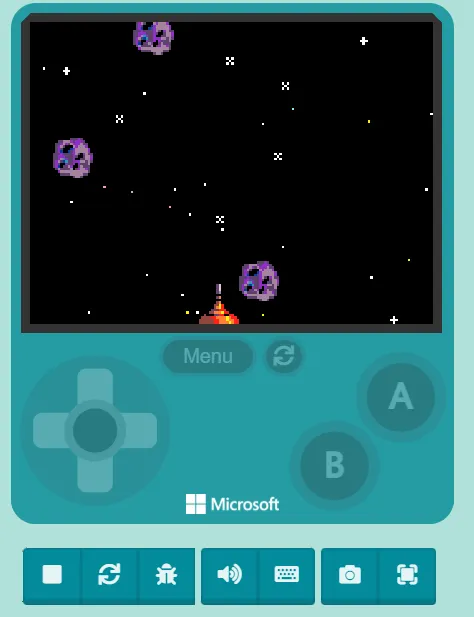
A game is fun when it’s challenging. Let’s create some asteroids that our player must either avoid or destroy.
Making Asteroids Appear
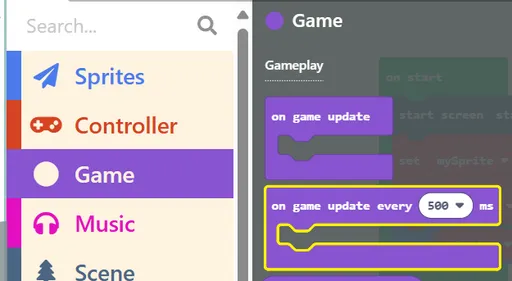
Section titled “Making Asteroids Appear”Look for the on game update every _ ms block via search or in the Game tab.
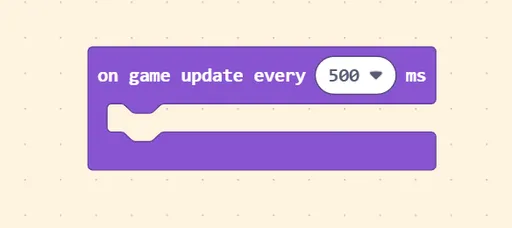
Now, we change the 500 ms setting to 1 second. This means the content inside the purple block will be ran every 1 second.
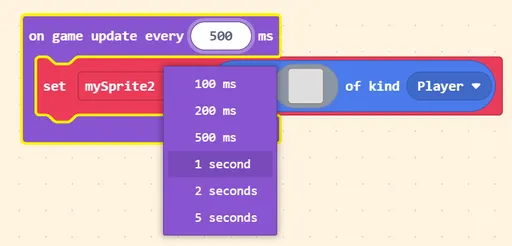
Next, grab the set _ to sprite _ of kind _ block again from the Sprites page.
Then:
- Rename
mySprite2tomyAsteroid, or any name you feel appropriate for our obstacle.
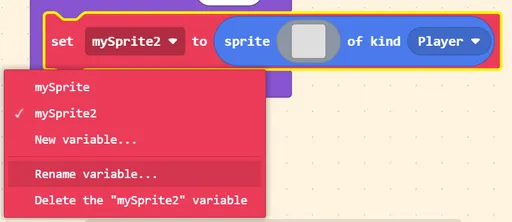
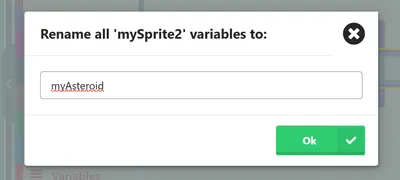
After we rename our sprite, we then:
- Add a sprite! We will use one of the asteroids, but you can use whatever you’d like.
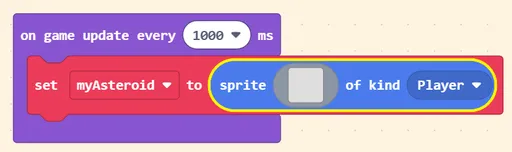
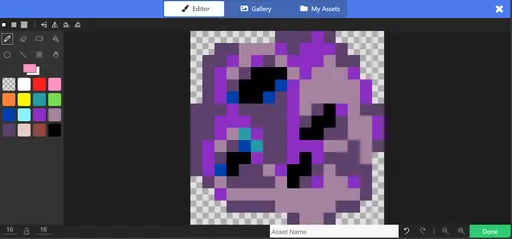
Finally, now that we have an asteroid sprite, we must:
- Change the ‘kind’ of
PlayertoEnemy. Our obstacles are not friends!
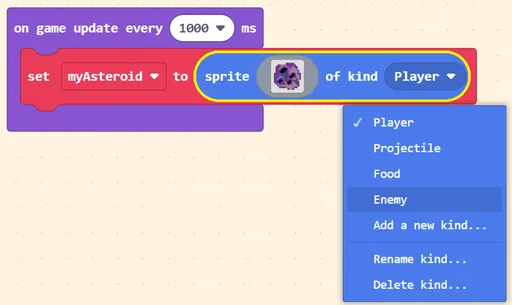
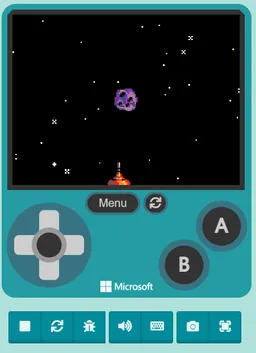
When you hit Play ▶, you should now see one asteroid appearing in the center of the screen. There are actually multiple asteroids (one asteroid appears every 1 second), but they are all overlapping, so you can’t see them.
Making them Appear in Random Positions
Section titled “Making them Appear in Random Positions”Now, let’s work on making the asteroids appear from the top, and move downwards, towards the player!
Look for the set _ position to x _ y _ block via search or in the Sprites tab, and place it in the on game update block.
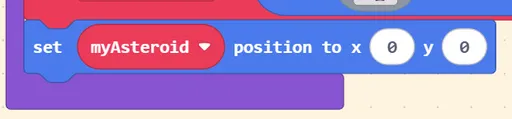
We’re going to do something special for the asteroids. We want them to appear unpredictably. We want them to be able to appear from the left, middle, right, etc. In other words, we want the asteroids to appear randomly.
Look for the pick random 0 to 10 block via search or in the Math tab:
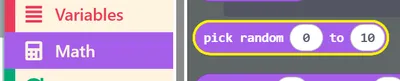
Then, place it next to the x in the set myAsteroid position to block. Set the second value to 120, which is the maximum width of the screen.

When you hit Play ▶, you will now see the asteroids appear at the top of the screen, at random x positions! We’re almost there, we need to give them movement now.
Look for the set _ velocity to vx _ vy _ block via search or in the Sprites tab, and place it in the on game update block. Leave vx as 0, and set vy as any positive number.
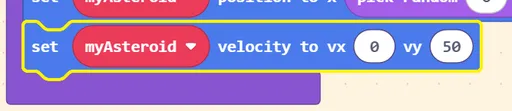
This is what the on game update block should finally look like. You may use a different sprite, a different pick random range, and a different vy value.
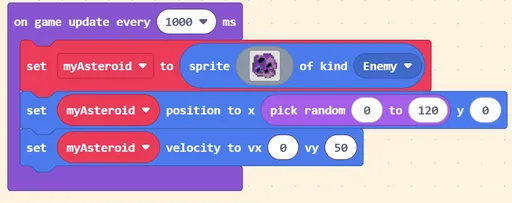
Now, hit Play ▶, and you should see the asteroids appear at random positions and fall down towards the ship! They don’t hurt the player yet, though, so let’s work on that next.